
Back to all postsiPhone 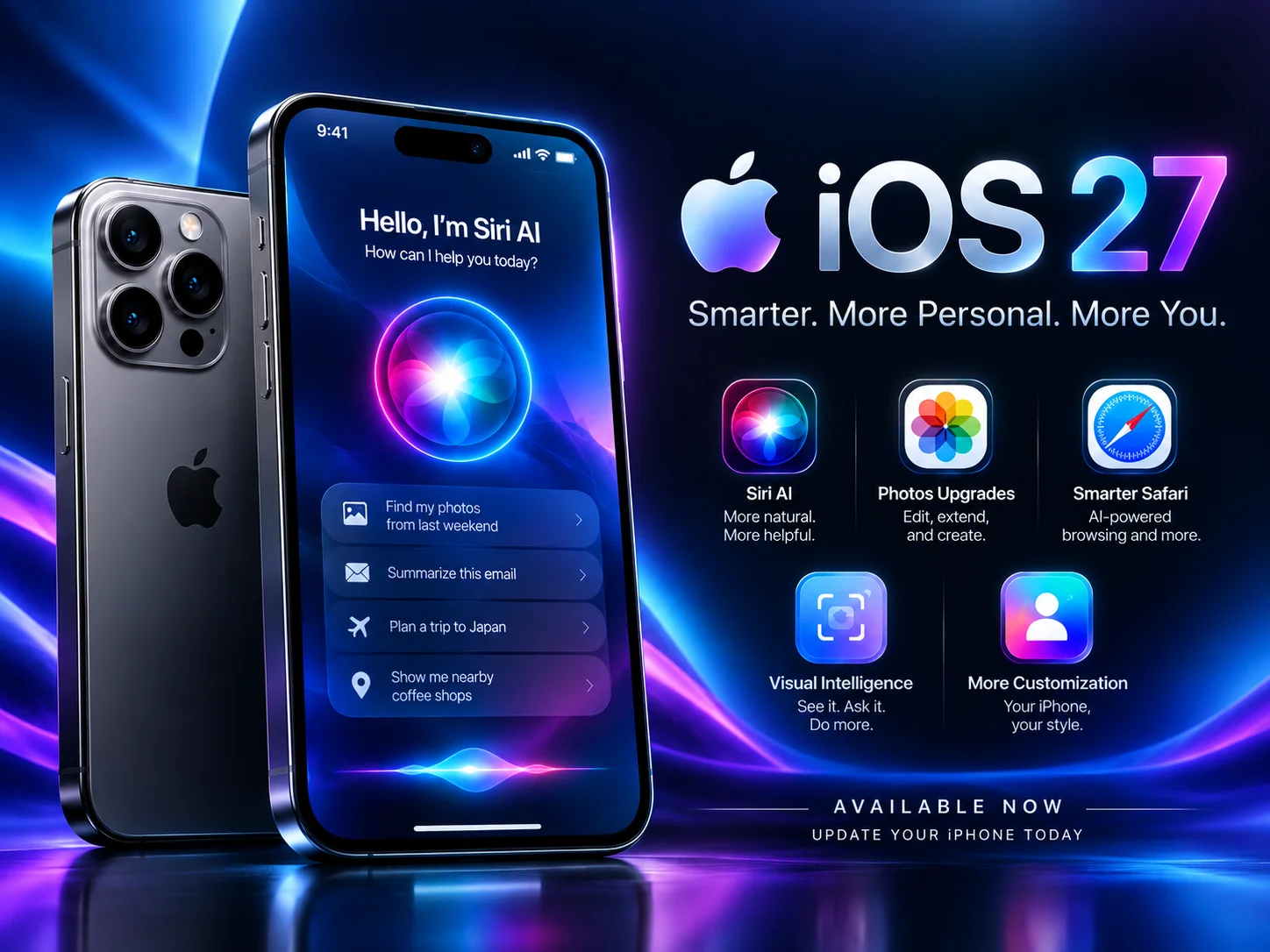
iOS 27 Is Here: How to Update Your iPhone
John
Apple has officially released iOS 27, making the latest major iPhone software update available to users worldwide. The update arrived on September 14, 2026, and introduces a new generation of Siri AI, expanded Apple Intelligence capabilities, improved apps, and additional safety and parental-control features.
If you have a compatible iPhone, updating to iOS 27 is relatively straightforward. Before starting, however, it is a good idea to back up your important data and make sure your iPhone has enough battery and storage.
How to Update to iOS 27
Step 1: Back Up Your iPhone
Before installing a major software update, back up your iPhone using iCloud or a computer.
To use iCloud:
Settings → [Your Name] → iCloud → iCloud Backup → Back Up Now
Wait until the backup finishes before proceeding.
Step 2: Connect to Wi-Fi
Connect your iPhone to a reliable Wi-Fi network. Major iOS updates can be large, so using Wi-Fi is recommended rather than relying on cellular data.
It is also a good idea to connect your iPhone to a charger if the battery is low.
Step 3: Open Software Update
On your iPhone, open:
Settings → General → Software Update
Your iPhone will check Apple's servers for available software updates.
If iOS 27 is available for your device, you should see the iOS 27 update on this screen.
Step 4: Download and Install iOS 27
Tap Download and Install and follow the on-screen instructions.
You may be asked to enter your iPhone passcode and agree to Apple's software terms and conditions.
Your iPhone will then download the update and restart during the installation process.
Step 5: Let the Installation Finish
The installation may take some time depending on your iPhone model, available storage, internet connection, and Apple's server traffic.
Do not turn off your iPhone while the update is being installed.
Once the installation is complete, your iPhone will restart and you can continue using it with iOS 27.
Which iPhones Support iOS 27?
iOS 27 supports iPhone 11 and newer models, as well as the iPhone SE (2nd generation and later).
However, not every iOS 27 feature is available on every compatible iPhone. Apple Intelligence features require newer hardware, with compatibility beginning at the iPhone 15 Pro and iPhone 15 Pro Max according to Apple's published requirements.
What’s New in iOS 27?
One of the biggest changes in iOS 27 is the introduction of Siri AI, Apple's next-generation Siri experience.
Apple says Siri AI provides a more capable and conversational assistant with features including personal context understanding, broader knowledge, onscreen awareness, and additional systemwide actions.
iOS 27 also expands Apple Intelligence across Apple's apps and introduces new parental-control and child-safety features.
iOS 27 Update Not Showing?
If iOS 27 does not appear under Settings → General → Software Update, try these steps:
Make sure your iPhone is compatible with iOS 27.
Connect to a stable Wi-Fi network.
Restart your iPhone.
Make sure you have enough available storage.
Connect the iPhone to power and check Software Update again.
Try again later if Apple's servers are experiencing heavy demand.
Apple also notes that an iPhone needs to be compatible, connected to power when necessary, and able to access the update before installation can proceed.


