
Back to all postsNews
How to Import Your Old Passwords Into Apple Passwords
John
Switching to Apple’s Passwords app can make it much easier to manage website and app logins across your Apple devices. If your passwords are currently stored in another password manager or browser, you don’t have to add them one by one.
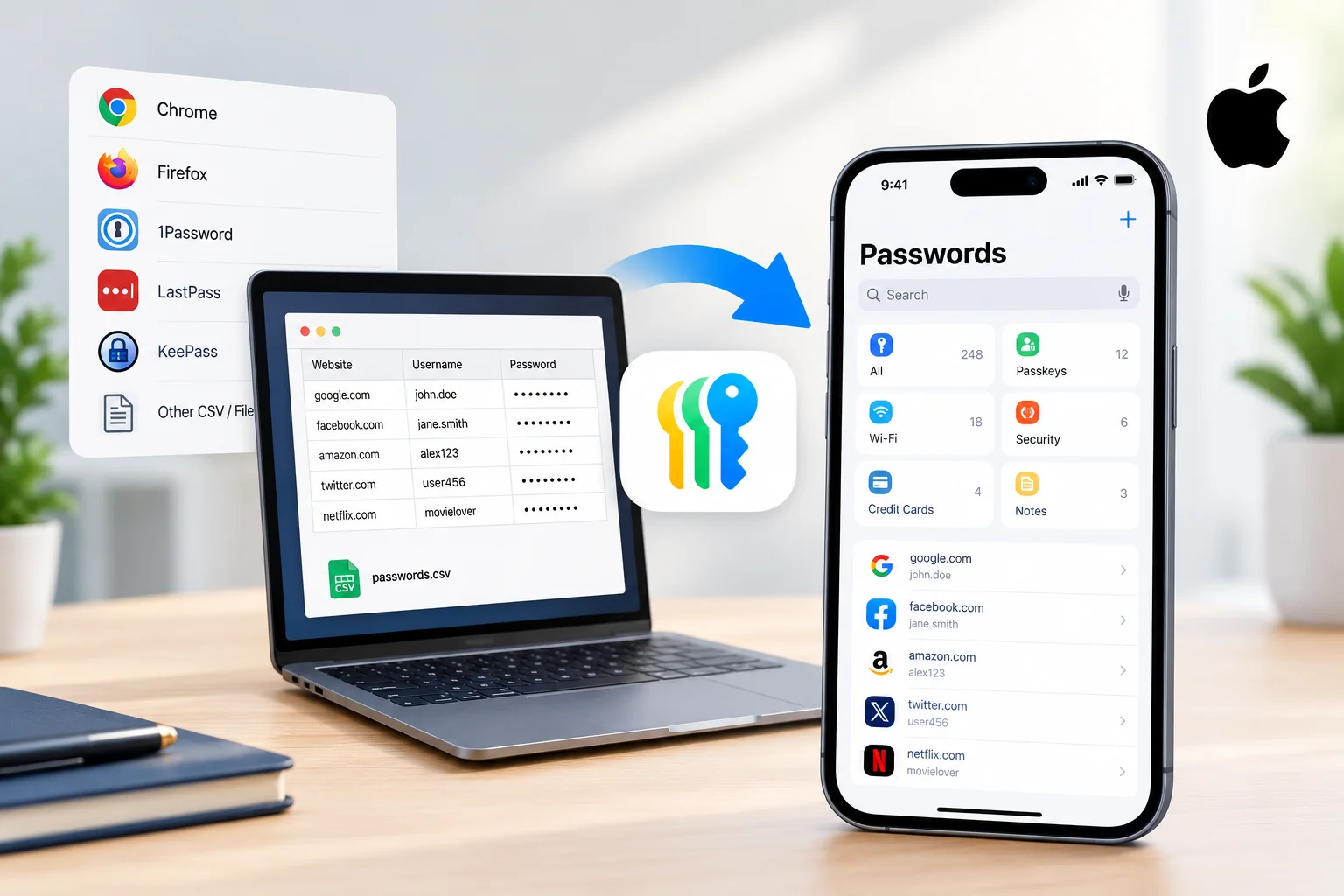
Apple allows users to import passwords using a CSV file, making it relatively simple to move existing login information into the Passwords app. On Mac, the process is handled directly through the Passwords app, while iPhone and iPad users can import password data through Safari settings.
What You Need Before Importing
Before starting, export your existing passwords from your current password manager or browser. Most services can export passwords as a CSV file, which contains information such as website addresses, usernames and passwords. Apple supports importing this type of file into Passwords on Mac.
Keep in mind that exported password files may contain your login credentials in an unencrypted format. Apple warns that anyone who can access the file may be able to see your passwords, so it is important to delete the file after the import is complete.
How to Import Passwords on Mac
If you have a Mac, importing your old passwords is straightforward:
Open the password manager you currently use.
Export your passwords as a CSV file.
Open the Passwords app on your Mac.
Select File > Import Passwords from File.
Click Choose File.
Select the CSV file containing your passwords.
Click Import.
Review the results and check whether any passwords could not be imported.
Apple says imported passwords do not replace passwords that are already stored in the Passwords app. This means existing entries should remain available rather than being automatically overwritten. After confirming that the passwords have been imported successfully, delete the CSV file from your Mac to prevent your login credentials from being exposed.
How to Import Passwords on iPhone or iPad
Apple also provides an import option on iPhone and iPad.
On an iPhone:
Open Settings.
Tap Apps.
Select Safari.
Under History and Website Data, tap Import.
Tap Choose File.
Select the CSV or ZIP file exported from your previous password manager.
Tap Import to Safari.
Tap Done.
The imported passwords are then added to the Passwords app. Apple provides essentially the same process on iPad.
You Can Also Import Browser Data
The iPhone import feature isn't limited to passwords. Apple says Safari can import other browser data, including bookmarks, history, extensions and credit cards, depending on the data included in the exported file. Imported passwords are placed in the Passwords app, while other supported browser information can be added to Safari.
Mac users can also import data directly from supported browsers such as Google Chrome and Mozilla Firefox. Safari can import passwords from browsers, while Apple recommends using the Passwords app for password importing and exporting on Mac.
Check Your Passwords After Importing
Once the migration is complete, open the Passwords app and review your accounts.
Check that important websites have the correct:
Website address
Username
Password
Verification information
Saved notes, if applicable
It is also worth checking for duplicate or missing entries. Apple says you can review passwords that could not be imported on Mac.
Delete the Exported Password File
This is one of the most important steps.
A CSV password export is not necessarily encrypted. Apple specifically warns that exported or imported password files may be visible to anyone who has access to the file. Once you have confirmed the migration worked, permanently delete the exported file and empty the Trash if necessary.
Avoid uploading the file to an untrusted cloud service or sending it through email or messaging apps while it contains your passwords.
Why Move to Apple Passwords?
Apple's Passwords app provides a central place to manage passwords, passkeys and other authentication information across compatible Apple devices. Once your credentials are stored in Apple's password system, you can use them for autofill when signing into websites and apps.
For users already invested in the Apple ecosystem, moving passwords into Passwords can make everyday sign-ins more convenient while reducing the need to maintain a separate password manager.
Final Thoughts
Moving an existing password collection to Apple Passwords doesn't have to be a time-consuming process. If your current password manager supports CSV export, you can move your credentials in a few steps.
Mac users can import the CSV file directly through the Passwords app, while iPhone and iPad users can use Settings > Apps > Safari > Import. After the migration, carefully check your accounts and delete the exported password file to protect your credentials.
With your passwords safely moved, Apple Passwords can become the central place for managing your website and app logins across your Apple devices.


