
Back to all postsApple Watch
How to Set Up Readiness on Apple Watch Ultra 4: Step-by-Step Guide
John
Before your Apple Watch Ultra 4 can show a Readiness score, you need to make sure several health and fitness features are set up. Apple says Readiness uses recent activity, vital signs and sleep data to generate a daily score from 0 to 10.
1. Update Your Apple Watch
First, make sure your Apple Watch Ultra 4 is running watchOS 27 and your paired iPhone is running iOS 27. Apple lists the Ultra 4 among the watches compatible with watchOS 27.
On your iPhone, go to:
Settings → General → Software Update
Then check for the latest iOS update.
On Apple Watch, open:
Settings → General → Software Update
2. Set Up Your Health Information
Make sure your basic information, including age, height and weight, is entered in the Fitness app on your iPhone. Apple uses this information as part of its health and fitness features.
3. Set Up Activity
Open the Fitness app on your iPhone and make sure Activity tracking is configured. Regular activity and workout information contributes to your Readiness score, including recent activity, active calories, workout effort and training load.
4. Set Up Sleep Tracking
Open the Health app on your iPhone and configure Sleep. Wear your Apple Watch Ultra 4 while sleeping so it can collect overnight information. Apple says you need to wear the watch to bed for at least seven nights before Readiness can establish the necessary baseline. The baseline uses data from at least seven nights within the previous 49 days.
5. Set Up Vitals
Make sure the Vitals feature is recording your overnight measurements. Readiness can use measurements including heart rate, respiratory rate, wrist temperature and heart-rate variability. The available measurements can vary by device and region.
6. Open the Readiness App
Once your data is available, press the Digital Crown on your Apple Watch Ultra 4 and open the Readiness app.
Your score is presented on a scale from 0 to 10:
0–1: Recover
2–4: Pace Yourself
5–7: Ready
8–10: Go For It
Apple says the score can update during the day as additional information becomes available, including activity and daytime heart-rate data.
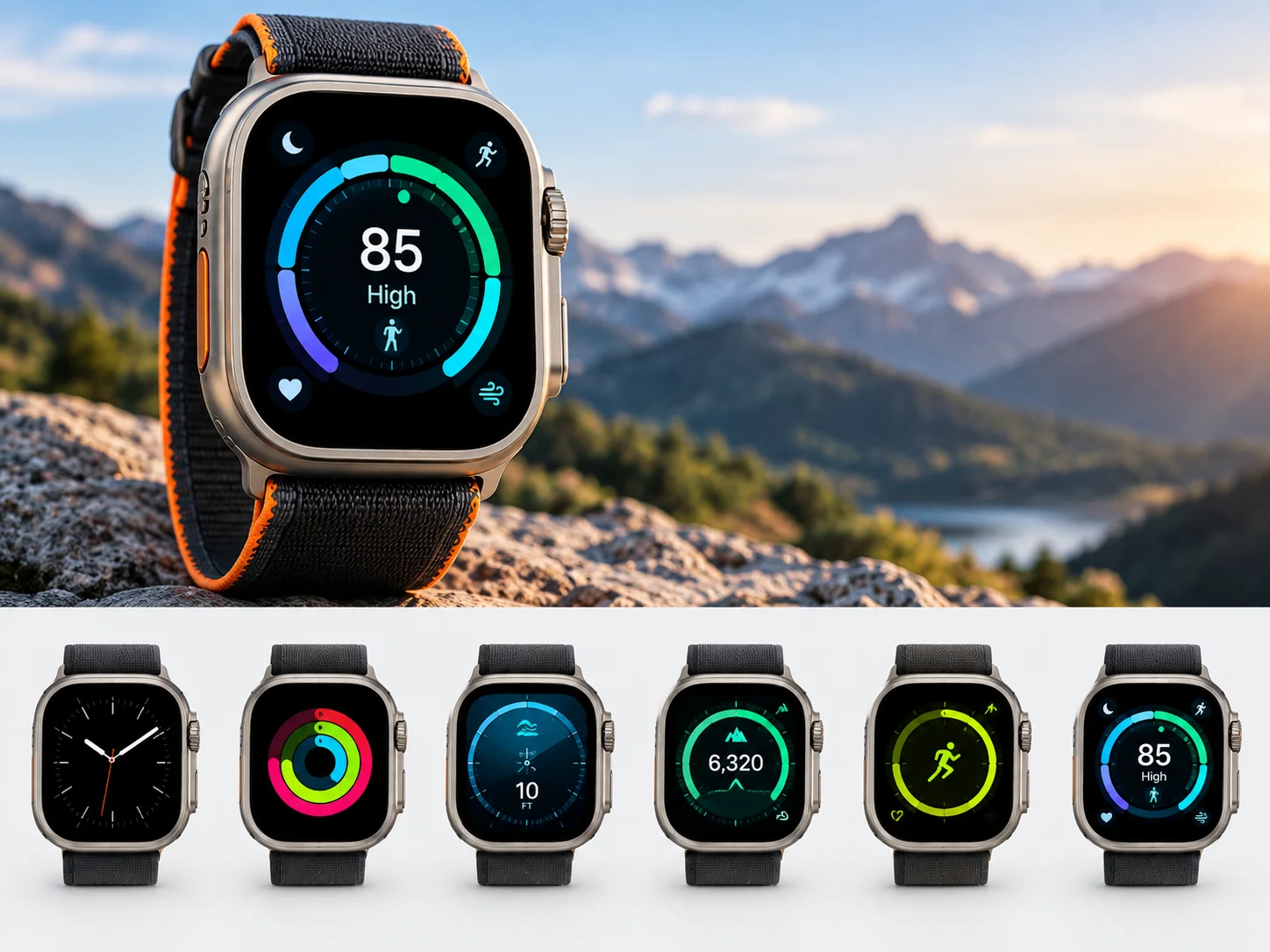
7. Add Readiness to Your Watch Face
If you want to see your score without opening the Readiness app, customize a supported watch face.
On your Apple Watch:
Touch and hold the watch face → Edit → swipe to the bezel options → select Readiness → press the Digital Crown → tap the watch face
The Readiness bezel displays your score and category directly on the watch face, making it easier to check your current readiness throughout the day.
Why Your Readiness Score May Not Appear
If you don't see a Readiness score immediately, give the Apple Watch time to collect enough information.
Check that:
Sleep tracking is enabled.
You regularly wear the Ultra 4 while sleeping.
Activity tracking is enabled.
Vitals is recording overnight measurements.
Your personal information is complete in Fitness.
Your Apple Watch and iPhone are running the required software.
Readiness isn't designed to be a medical diagnosis or the sole basis for deciding whether exercise is safe. Apple specifically notes that the feature doesn't account for every health factor, including existing medical conditions or medications.
Readiness Makes the Ultra 4's Watch Faces More Useful
The new Readiness bezel is a relatively small addition, but it makes Apple's new recovery-focused feature easier to access. Instead of opening an app every time, Ultra 4 users can keep their current Readiness information visible directly on a supported watch face.
For people who regularly track sleep, workouts and recovery, it provides a convenient at-a-glance view of how Apple Watch interprets their recent activity and health data.


