
Back to all posts
Just Got an Apple Watch Series 12? Here’s How to Set It Up
John
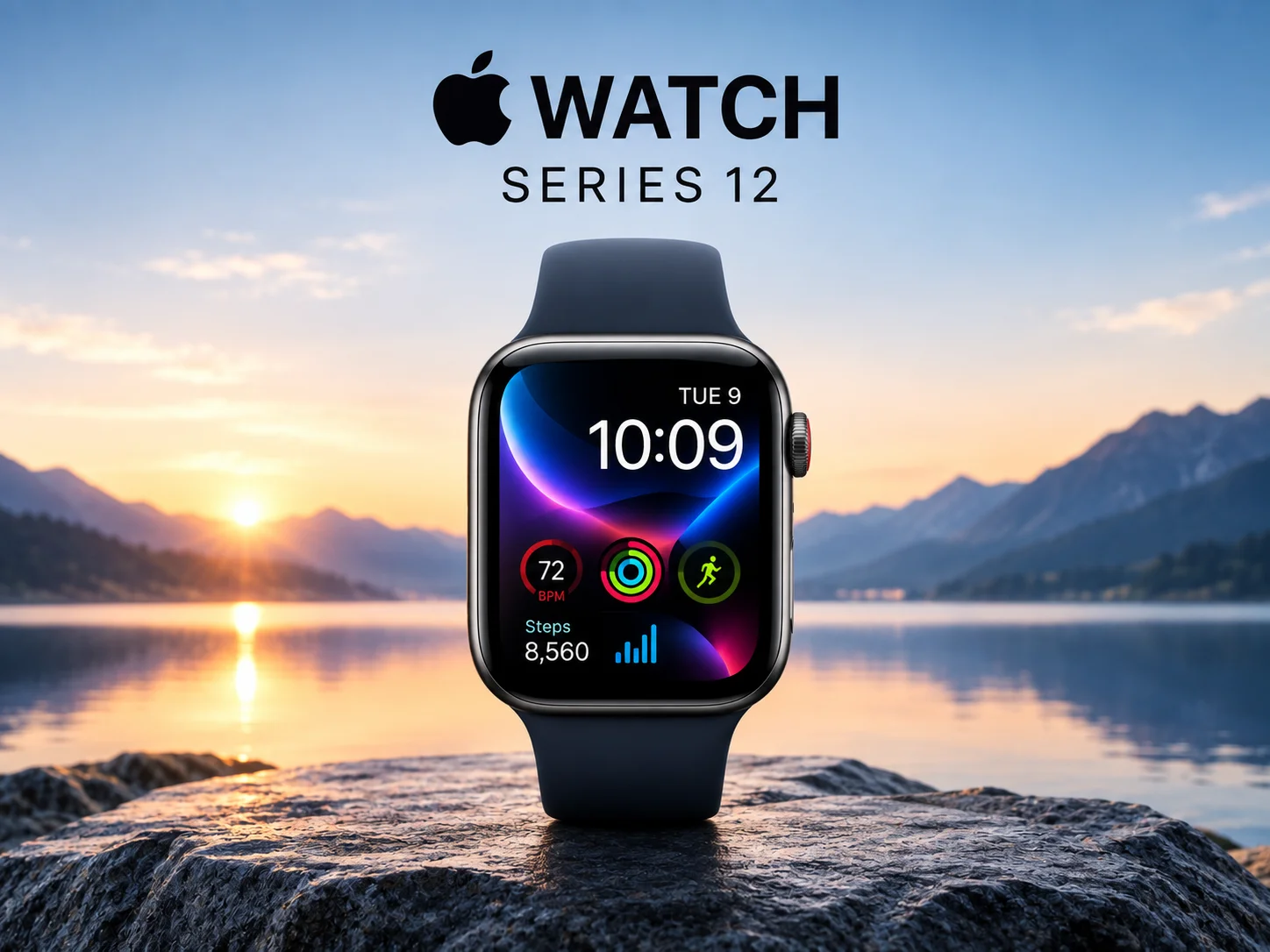
The Apple Watch Series 12 is now available, bringing Apple's new Health Sensing System, S11 chip, enhanced health and fitness features, and watchOS 27. Apple says the Series 12 is available from September 18, 2026, alongside the new Apple Watch Ultra 4 and AirPods 5.
If you've just purchased an Apple Watch Series 12, setting it up is straightforward. Here's everything you need to know to get started.
What You Need Before Setting Up Apple Watch Series 12
Before beginning the setup process, make sure you have:
An iPhone 11 or later
iOS 27 or later installed on your iPhone
Bluetooth turned on
A Wi-Fi or cellular connection
Your Apple Account credentials
Your Apple Watch Series 12 charged and ready to use
Apple specifically requires an iPhone 11 or later running iOS 27 or later to set up Apple Watch Series 12.
If your iPhone needs an update, install the latest version of iOS before attempting to pair the watch.
Step 1: Turn On Your Apple Watch
Start by pressing and holding the side button on your Apple Watch Series 12 until the Apple logo appears.
Put the watch on your wrist and wait for the setup screen to appear.
Step 2: Unlock Your iPhone
Make sure your iPhone is unlocked and keep it close to your Apple Watch.
Your iPhone should display a message asking you to use the iPhone to set up the Apple Watch.
Tap Continue.
If the message doesn't appear, open the Apple Watch app on your iPhone, tap All Watches, and then select Add Watch.
Step 3: Pair Your Apple Watch With Your iPhone
Your Apple Watch will display an animation.
Hold your iPhone over the animation and position the watch face inside the viewfinder shown on your iPhone.
Your iPhone should recognize the watch and complete the pairing process.
If your iPhone can't scan the animation, Apple also provides an option to Pair Apple Watch Manually.
Step 4: Choose How You Want to Set Up the Watch
After pairing, you'll be given options for setting up your Apple Watch.
If this is your first Apple Watch, choose:
Set Up as New Apple Watch
If you've previously used an Apple Watch with the same iPhone, you can restore your previous watch from a backup.
Apple may also ask you to update the Apple Watch before continuing with setup.
Step 5: Choose Your Wrist
Select whether you wear your Apple Watch on your left wrist or right wrist.
This helps the watch correctly configure its controls and orientation.
Follow the remaining instructions on your iPhone and accept Apple's Terms and Conditions when prompted.
Step 6: Sign In With Your Apple Account
Sign in using the Apple Account associated with your iPhone.
This allows your Apple Watch to access services and features connected to your Apple ecosystem.
Depending on your settings, you may also be asked to enter your Apple Account password or verification information.
Step 7: Create a Passcode
Apple will give you the option to create a passcode for your Apple Watch.
A passcode helps protect information stored on the watch and enables features such as Apple Pay.
Choose a passcode that you can remember but that others cannot easily guess.
Step 8: Set Up Apple Pay
If you want to use your Apple Watch for contactless payments, you can add supported cards to Apple Pay during setup.
Follow the instructions displayed on your iPhone to verify your card with your bank or card issuer.
You can also skip this step and configure Apple Pay later through the Watch app.
Step 9: Configure Health and Fitness Features
Apple Watch Series 12 introduces Apple's new Health Sensing System, including enhanced heart-rate sensing and higher-frequency heart-rate variability measurements. Apple also introduced a new Readiness experience designed to provide insight into your body's capacity to take on the day.
During setup, review the Health and Fitness permissions and enter accurate personal information when requested.
The more accurate your information is, the more useful certain health and fitness features can be.
Step 10: Set Up Notifications
Your Apple Watch can mirror notifications from your iPhone.
During setup, review which apps are allowed to send notifications to your watch.
You can change these settings later from:
iPhone → Watch app → Notifications
Choosing only the notifications you actually need can make the Apple Watch much less distracting.
Step 11: Customize Your Watch Face
Once setup is complete, choose a watch face that suits your needs.
watchOS 27 introduces new watch faces and personalization options, while Apple Watch Series 12 also supports a new heart-rate complication and a Steps complication that can display information directly on the watch face.
You can add complications for information such as:
Activity
Weather
Heart rate
Steps
Calendar
Battery
Workout
Step 12: Explore watchOS 27
Apple Watch Series 12 runs watchOS 27, which introduces several new features.
Among the highlights are Siri AI in beta, Readiness, improved heart-rate and HRV information, enhanced Workout features, a redesigned app grid, Find My improvements and new personalization options.
Siri AI can use personal context and information available on the Apple Watch to provide more relevant responses. Availability depends on the supported device, language and region.
Don't Forget to Update Your Apps
After completing setup, open the App Store on your Apple Watch or check the Watch app on your iPhone for available updates.
Keeping your apps updated ensures that you're using the latest versions compatible with watchOS 27.
How to Check Your Apple Watch Settings
After setup, most Apple Watch settings can be managed from your iPhone.
Open:
Watch app → My Watch
From there, you can manage watch faces, notifications, apps, health settings, privacy, cellular settings, accessibility and other options.
What If Apple Watch Series 12 Won't Pair?
If your Apple Watch doesn't pair with your iPhone, try these steps:
Make sure your iPhone is running iOS 27 or later.
Turn Bluetooth on.
Connect your iPhone to Wi-Fi or a mobile network.
Keep the iPhone and Apple Watch close together.
Restart both devices.
Open the Watch app and try pairing again.
Apple notes that the iPhone may need a software update before Apple Watch setup can continue.


